Connect Stripe sandbox
Save prices, provision Stripe products and approve plans for sale.
Start with a dedicated Stripe test environment. Add these server-only values to .env and restart the backend:
Stripe__SecretKey=sk_test_your_key
Stripe__WebhookSecret=whsec_your_endpoint_secret
Stripe__LiveMode=false
Stripe__BaseUrl=https://localhost:5001
Stripe__BaseUrl is the public HTTPS origin used for checkout return and account links; set it to your real origin when deploying. Settings in the Stripe section override the older LicenseStripe section.
Configure license signing first: checkout validates the private key and short-key salt before redirecting a customer, so a sale can never succeed without a way to issue the license.
Create and approve prices
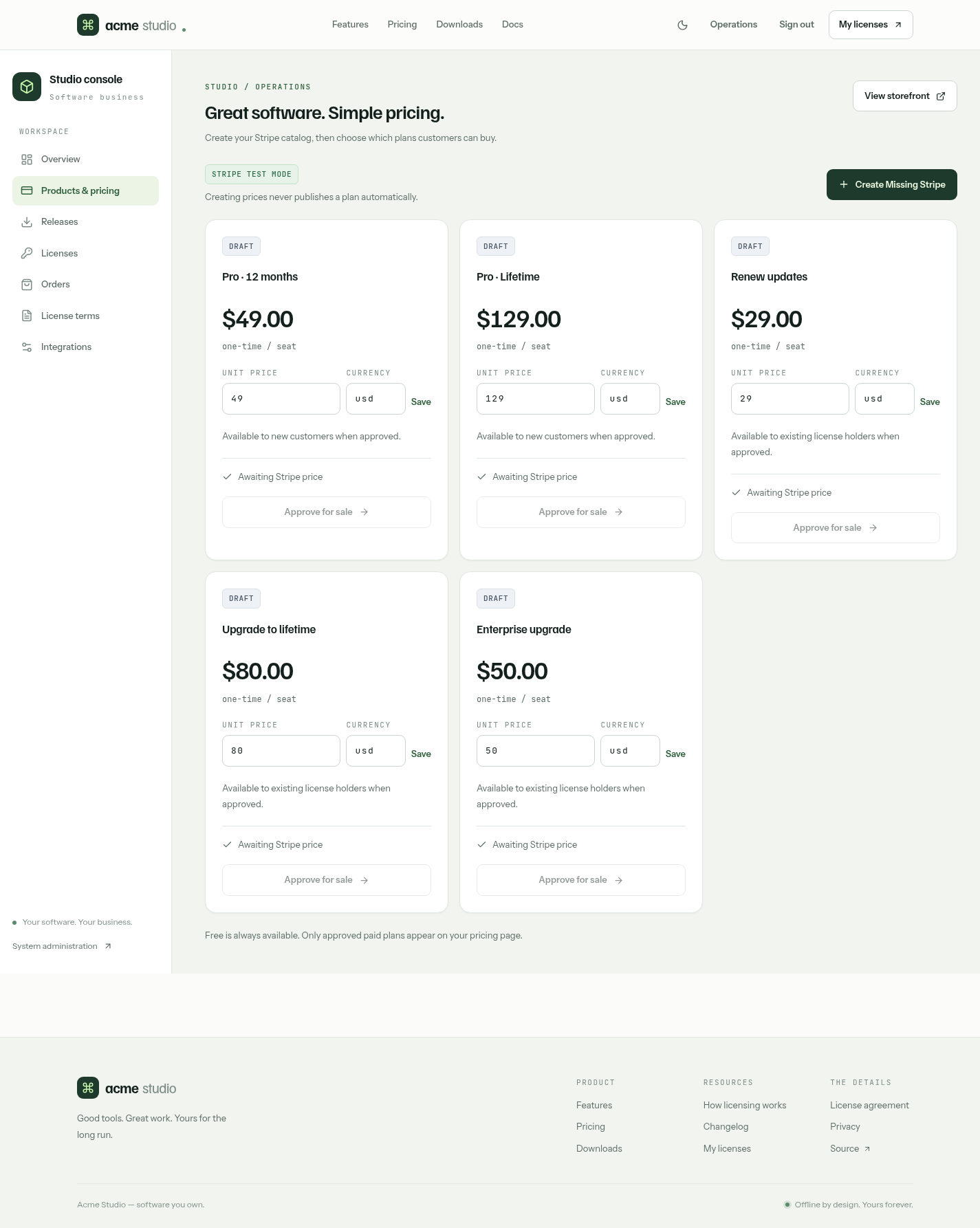
- Sign in as Admin and open Products & pricing at
/admin/catalog. - Enter the amount and currency for each offering you want to sell, and save it.
- Click Create Missing Stripe. The server finds or creates matching one-time Stripe products and prices; you don't copy any Stripe IDs.
- Review each offering and click Approve for sale. Provisioning alone never publishes a plan.
- Open
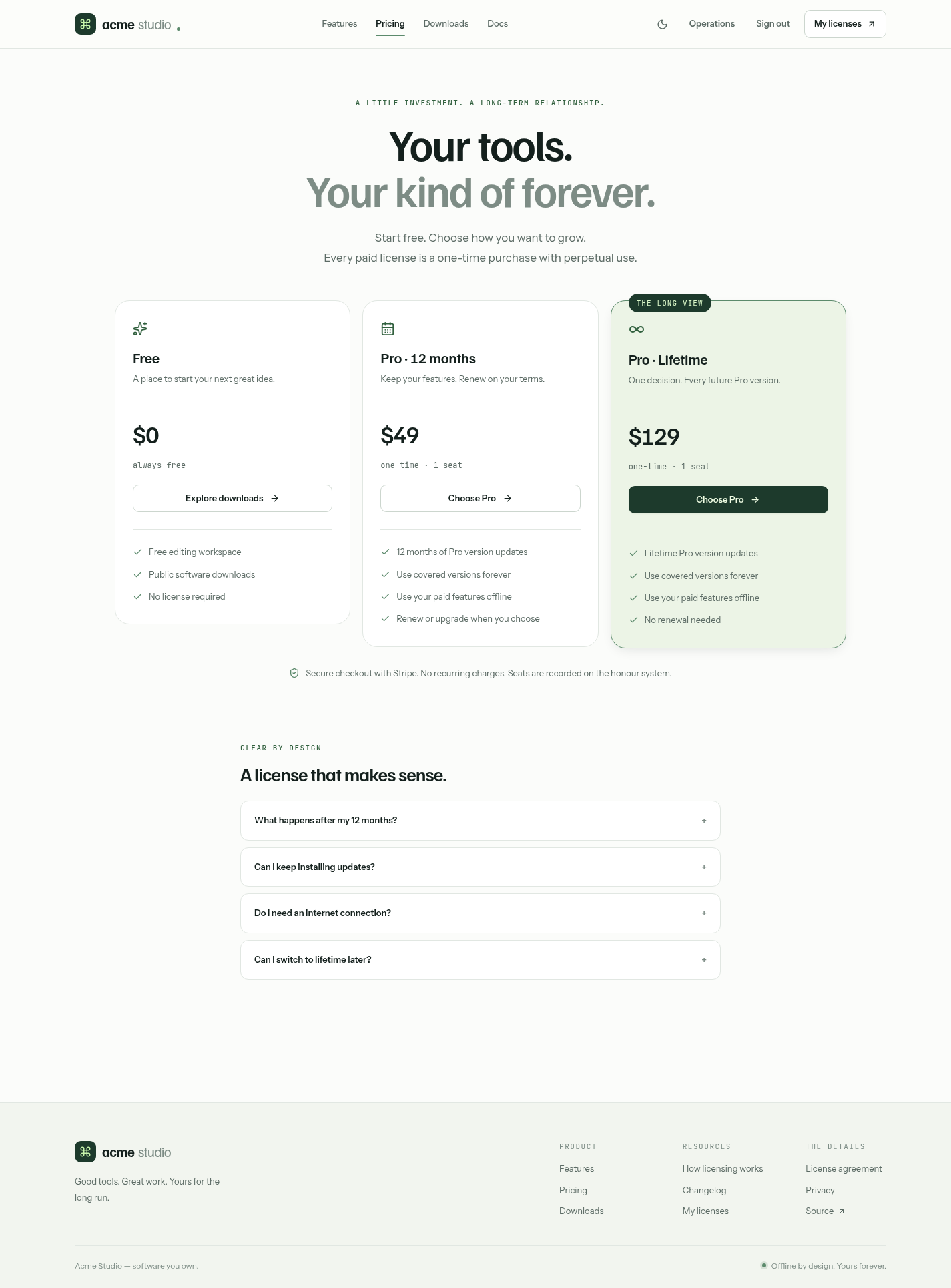
/pricingto check the approved offers.
| Offering | SKU | Purpose |
|---|---|---|
| Pro · 12 months | pro-12m-new | New dated license; also used for late renewals |
| Pro · Lifetime | pro-lifetime-new | New Lifetime license |
| Renew updates | pro-12m-renewal | Discounted renewal within the grace window |
| Upgrade to lifetime | pro-lifetime-upgrade | Dated Pro to Lifetime updates |
| Enterprise upgrade | pro-edition-upgrade | Upgrade to the Enterprise edition |
Renewal pricing applies until Licensing:RenewalDiscountGraceDays (default 60) days after the current cutoff; after that, renewing charges the pro-12m-new price.
Editing an offering's amount or currency withdraws its approval and clears its old Stripe price. Create the replacement price and approve it again. Use Remove from sale to hide an offering. Neither action changes existing orders.
Publish license terms
Open License terms at /admin/agreements and publish a reviewed agreement version. The Markdown renders in Operations, on /eula and in checkout. Customers accept the current version before continuing to Stripe, and that acceptance is recorded with the order.
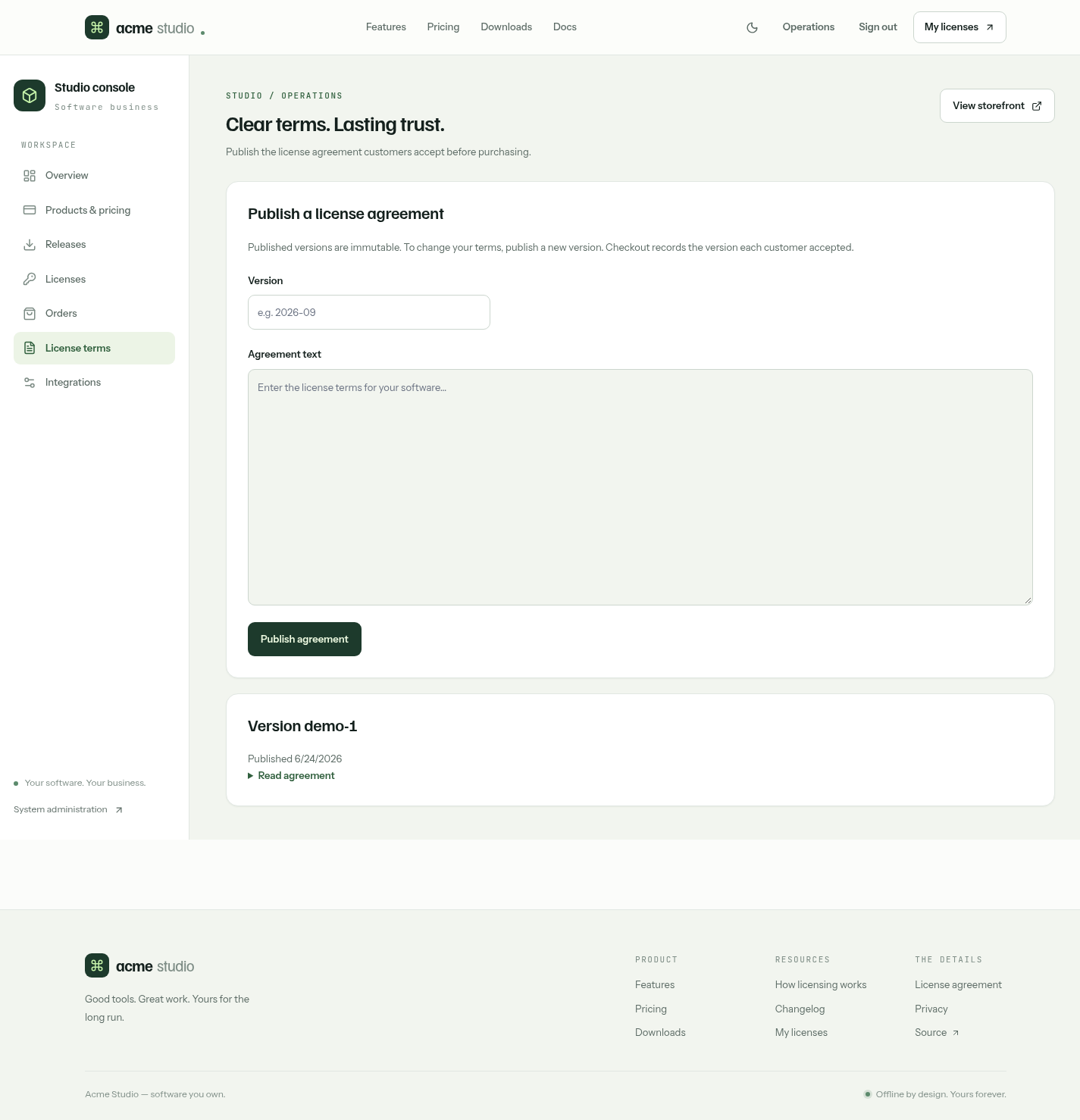
The screenshot shows local placeholder terms; publish your own agreement.
Connect webhooks
In Stripe, add a webhook endpoint for https://<your-origin>/stripe/webhook with these events:
checkout.session.completedcheckout.session.async_payment_succeededcheckout.session.async_payment_failedrefund.created,refund.updated,refund.failedcharge.dispute.created,charge.dispute.updated,charge.dispute.closed
Use that endpoint's signing secret as Stripe__WebhookSecret. For local development, the Stripe CLI can forward events: stripe listen --forward-to https://localhost:5001/stripe/webhook --skip-verify (the flag accepts the local development certificate). It prints a whsec_ secret to use locally.
Verify fulfillment
Complete a test purchase. Confirm that the order becomes Paid, exactly one license is issued, and the customer can copy or download it. Returning to /account?checkout=complete checks pending orders against Stripe, and Check payment status retries manually. Background reconciliation also recovers missed webhooks. A success redirect alone never proves payment.
Replay the webhook and check that no second license appears. Then exercise renewals, upgrades, delayed payments and refunds before enabling live sales. Promotion codes and automatic tax are off by default; see promotions and tax.
Next: verify before shipping.