Transfers and email preferences
Transfer a license to another verified account and choose optional lifecycle emails.
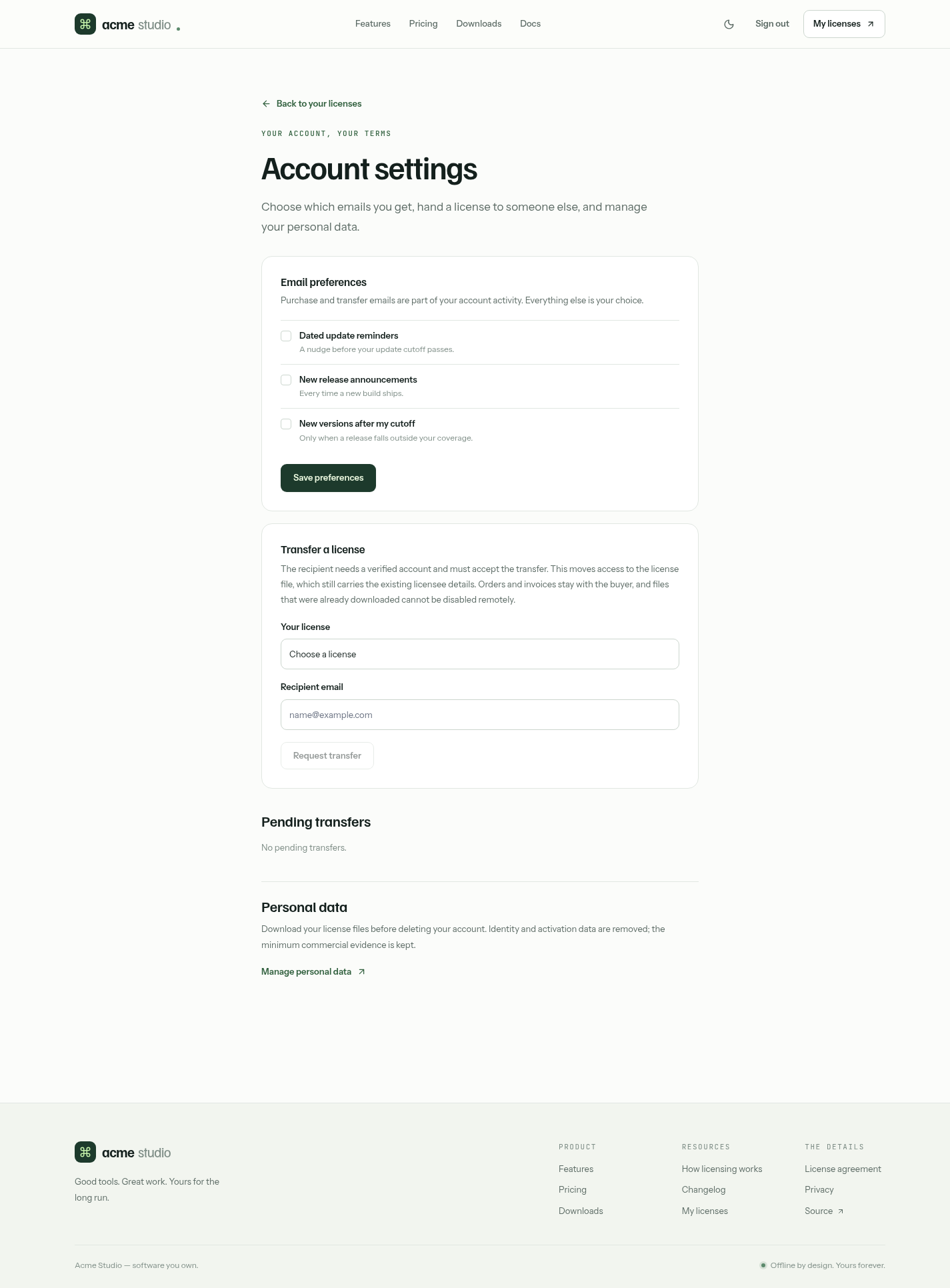
Customers open Account settings from /account, or go to /account/settings.
Transfer a license
- Choose an active license under Your license.
- Enter the recipient's email. They need their own verified account.
- Choose Request transfer. The recipient is emailed.
- The recipient signs in, opens Account settings and chooses Accept transfer within seven days.
Only the recipient can accept and only the sender can cancel. A license can have one pending transfer at a time.
A transfer moves portal access: the recipient can copy the key, renew it and receive its emails. It does not move the original orders or invoices, which stay with the buyer, and it doesn't change the registered name or organization signed into the key. An operator can reissue the license if those details need correcting.
Copies the sender already has keep working offline; a transfer can't recall them.
Email preferences
| Preference | Default |
|---|---|
| Update reminders | On |
| Release announcements | Off |
| Win-back messages | Off |
Choose Save preferences after changing them. Delivery and transfer messages are always sent because the customer requested them. Lifetime licenses get no reminders. See lifecycle notifications.
Personal data
The personal data link opens Identity's account management, including deletion. Customers should download their license files before deleting an account. See privacy and retention.