Connect Stripe sandbox
Use Stripe sandbox mode until plan creation, trials, checkout, webhooks, renewals, failures, cancellation, and the Customer Portal all behave correctly.
What the template automates
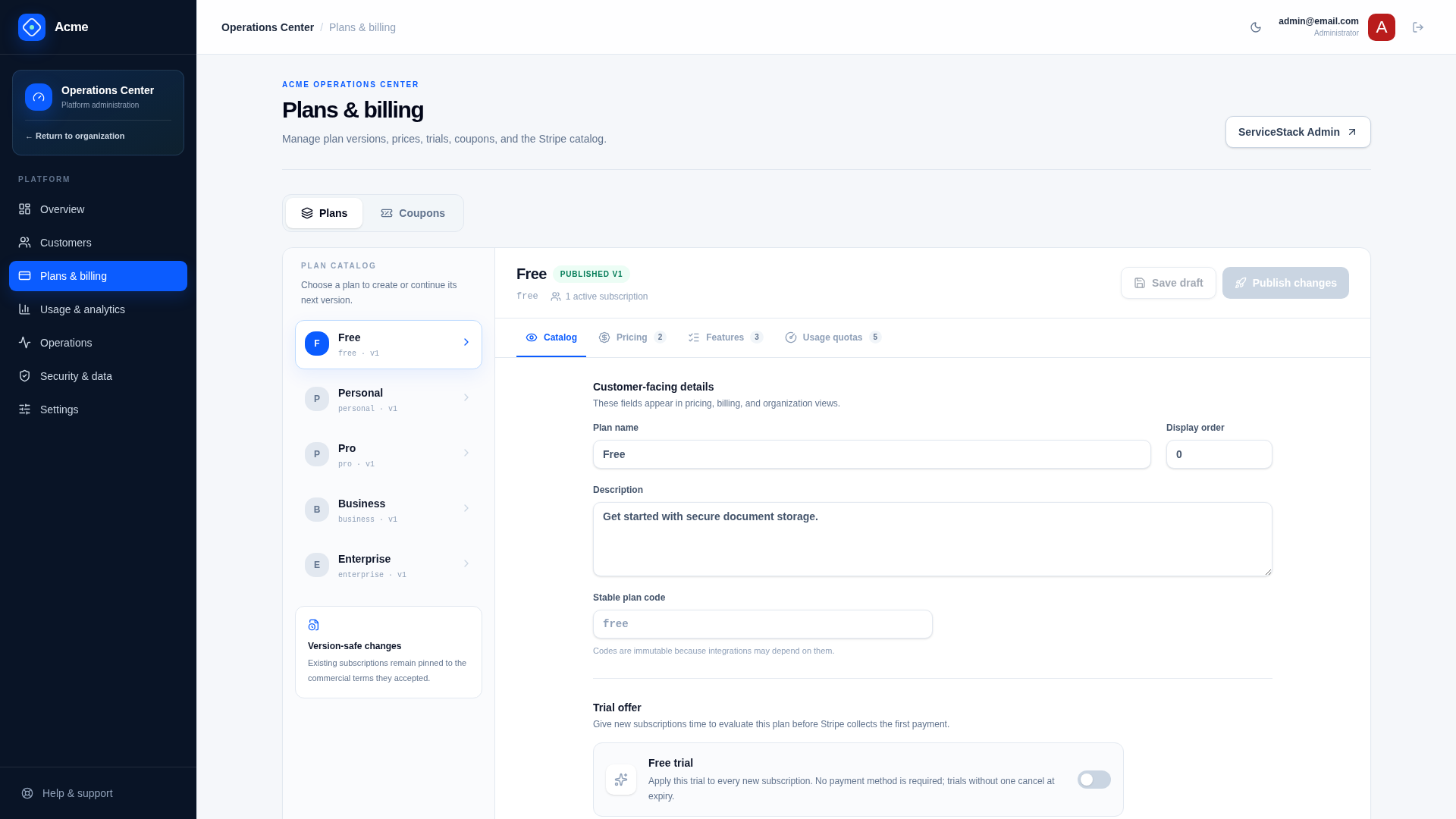
From the Plans tab at /admin/plans, the template can create or reuse Stripe Products and recurring Prices for a plan. Provisioning is metadata-based and idempotent, so retrying does not intentionally duplicate template-managed objects.
The template does not create your Stripe account, API keys, webhook endpoint registration, business profile, tax policy, payout account, or production compliance settings.
1. Copy sandbox API keys
In the Stripe Dashboard, remain in the sandbox and open Developers → API keys. Copy the publishable and secret keys into environment variables rather than appsettings.json:
export Stripe__PublishableKey=pk_test_...
export Stripe__SecretKey=sk_test_...
Alternatively, put them in the gitignored .env beside the solution, which the application applies automatically in Development:
Stripe__PublishableKey=pk_test_...
Stripe__SecretKey=sk_test_...
A variable already set in your shell still wins over the file. See Configuration.
Restart the backend after changing configuration. The admin Operations Center should report Stripe as ready.
2. Provision products and prices
Sign in as admin@email.com, open the Plans tab at /admin/plans, and repeat these steps for each paid self-service plan:
- Select the plan.
- Open its pricing configuration.
- Confirm monthly and annual amounts and currencies, editing them if needed.
- Click Create missing in Stripe. This saves a draft automatically when needed, then provisions the Stripe catalog.
- Review the returned
price_...mappings. - Publish the draft. The mappings are saved automatically, so no second draft save is required.
Free and contact-sales plans are skipped. Published subscriptions remain pinned to their existing plan version; publishing a new draft does not silently rewrite customer contracts.
Automatic catalog provisioning is enabled for sandbox keys by default. Live provisioning remains blocked unless Stripe.AllowLiveCatalogProvisioning is explicitly enabled.
3. Install and authenticate Stripe CLI
Install Stripe CLI using Stripe’s instructions, then authenticate:
stripe loginRun a listener while testing locally:
stripe listen \
  --events checkout.session.completed,customer.subscription.created,customer.subscription.updated,customer.subscription.deleted,invoice.paid,invoice.payment_failed \
  --forward-to https://localhost:5001/stripe/webhook \
  --skip-verify
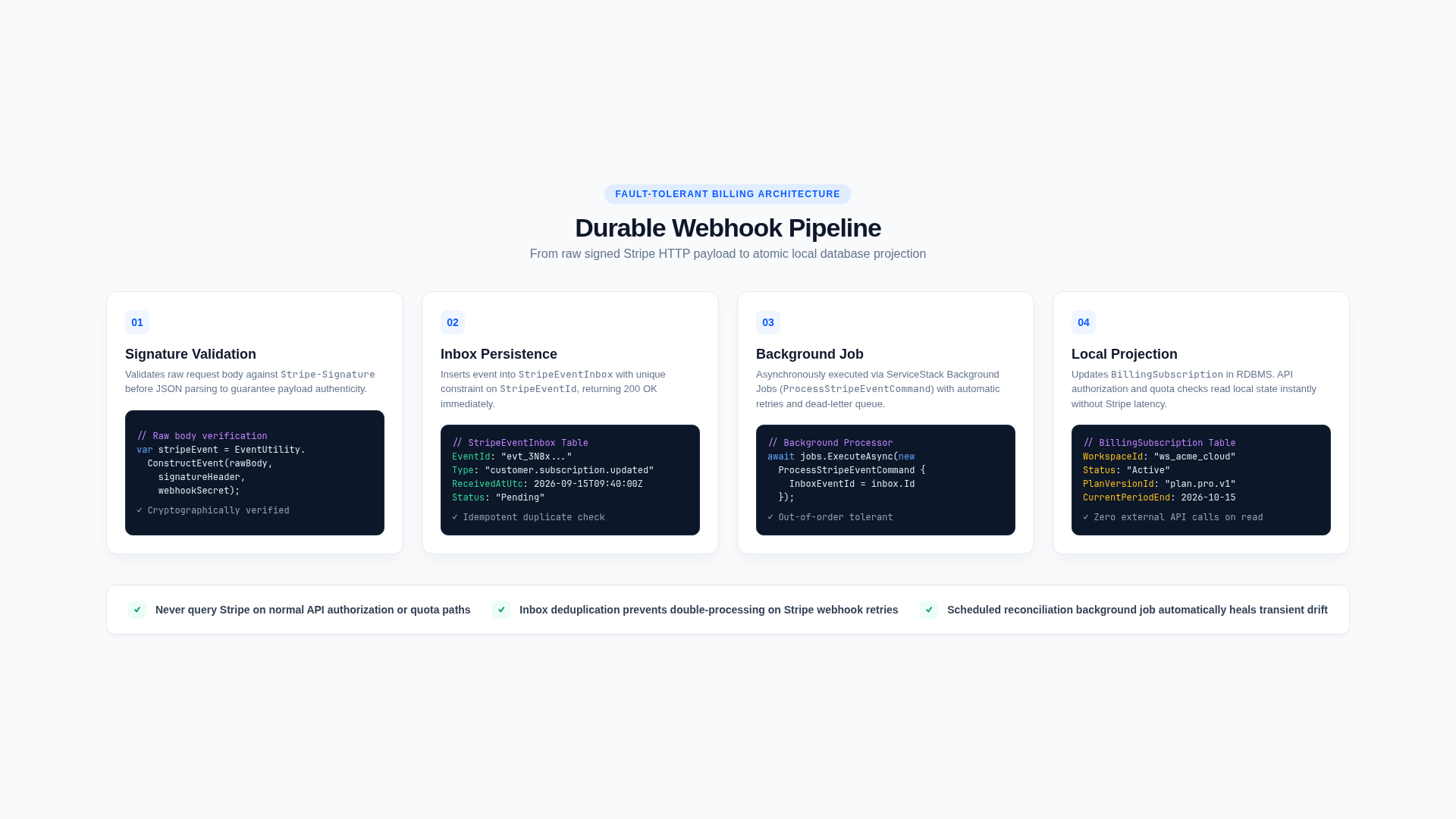
The listener prints a temporary whsec_... signing secret. Export it and restart the application:
export Stripe__WebhookSecret=whsec_...Keep the listener running during local billing tests. Its secret changes when a new listener session is created.
4. Test checkout
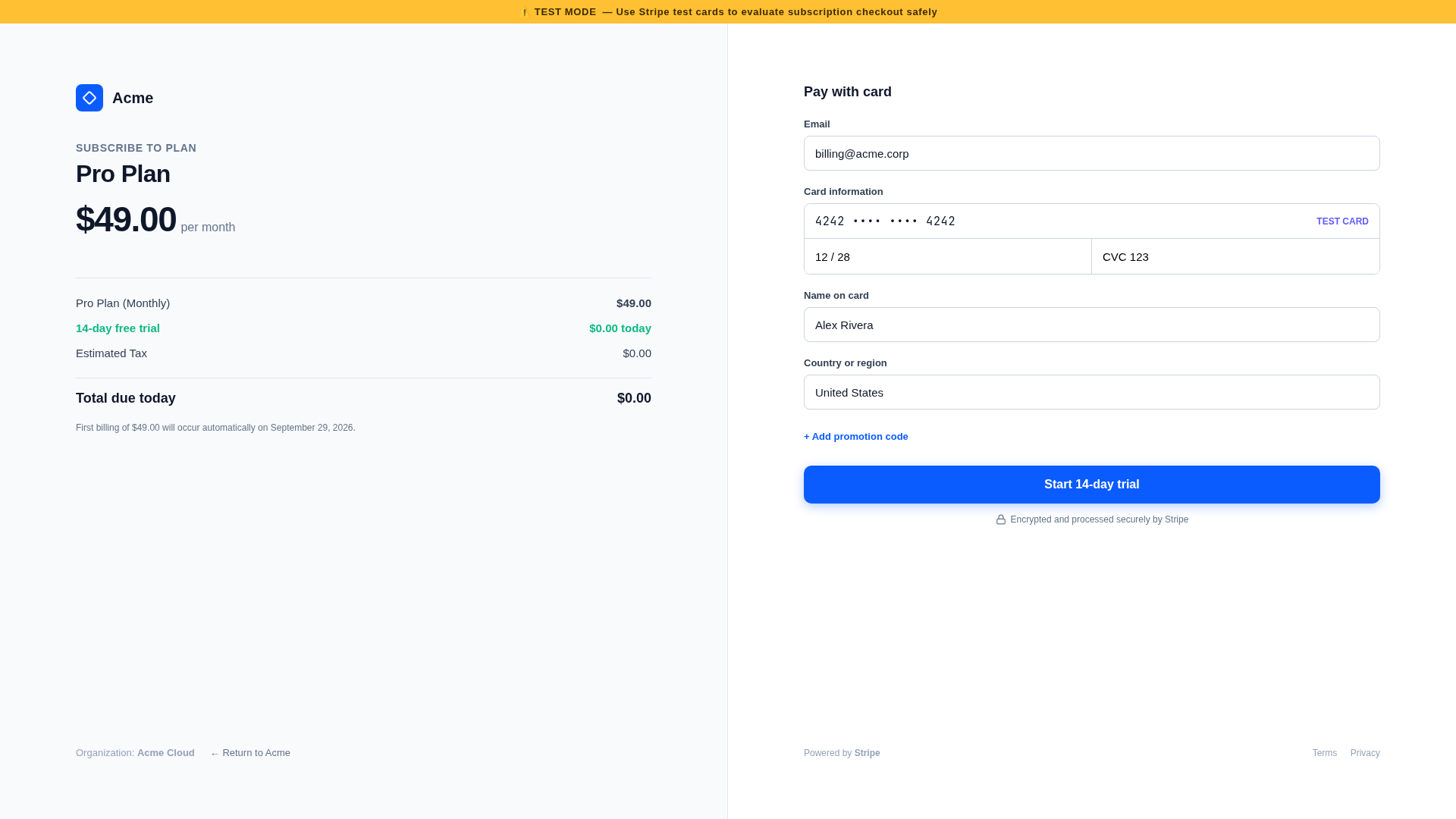
Sign in as a normal customer, open /pricing or /billing, and choose a paid plan. Stripe Checkout determines the button text:
- a plan with trial days can show Start trial and a zero amount due today;
- a plan without a trial shows the immediate subscription purchase;
Saas.TrialRequiresPaymentMethodcontrols whether a trial collects payment details upfront.
Complete checkout with a Stripe test payment method. The success URL returns to /billing?checkout=success. The template asks Stripe to confirm that Checkout Session immediately, closing the normal browser/webhook race. The organization should then show the selected plan and a Trialing or Active subscription.
Webhooks remain essential after checkout. Renewals, payment failures, cancellations, and Customer Portal changes do not return through the checkout confirmation path.
5. Verify local state
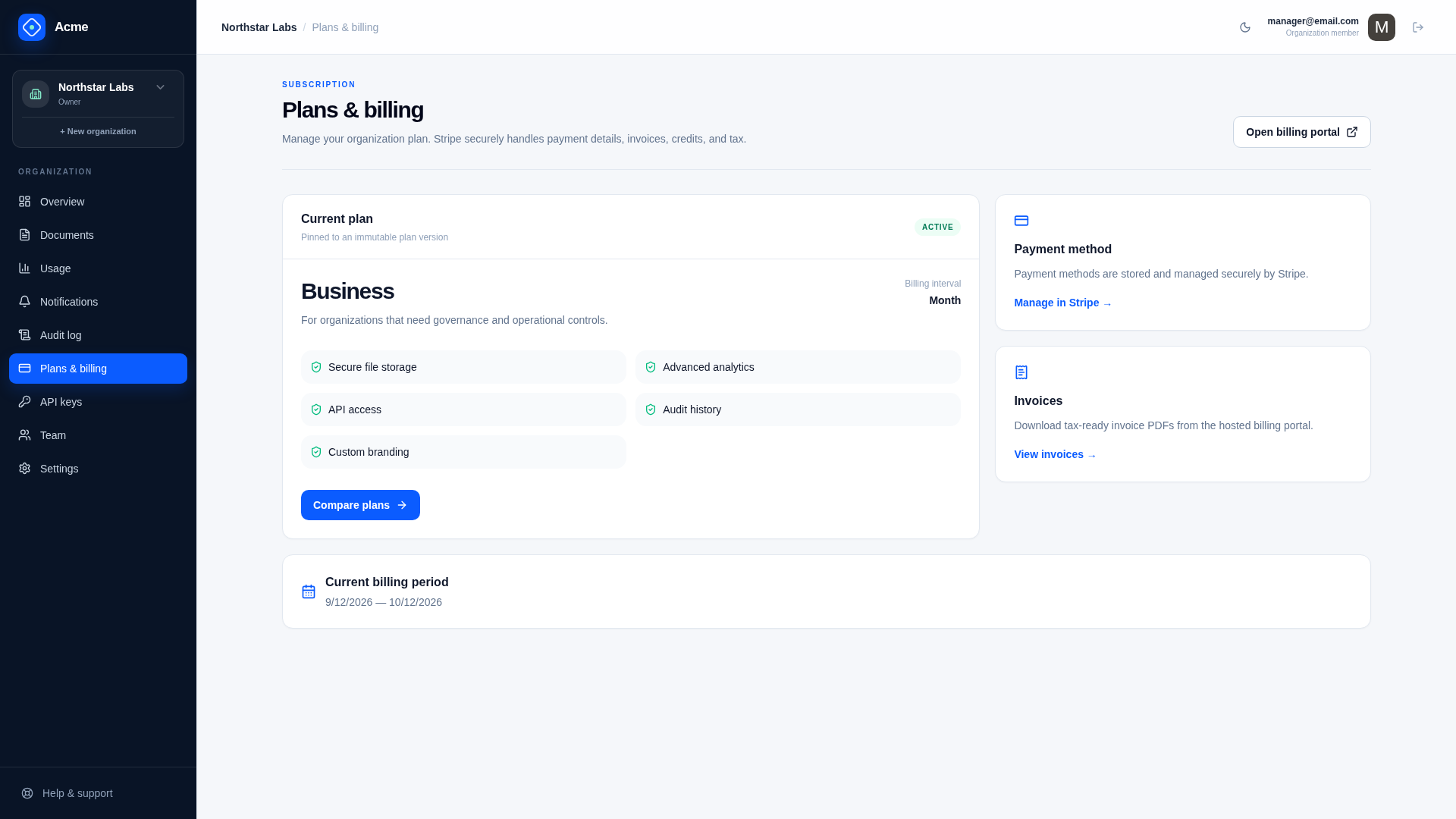
Check:
/billingshows the paid plan, correct status, billing period, and trial end if applicable;/usagereflects the new version’s allowances;/admin/customersCustomer 360 shows the Stripe customer and subscription identifiers to Admin and BillingAdmin roles;/admin/operationshas no failed Stripe inbox events;- the Stripe Dashboard shows the Customer, Subscription, Product, and recurring Price objects.
If the browser returns successfully but the organization remains Free, inspect the Stripe CLI listener, /admin/operations failed Stripe events, the Checkout Session confirmation response, and the configured Price ID.
6. Test lifecycle scenarios
Before calling billing complete, exercise:
- Paid checkout without a trial.
- Trial with a payment method.
- Trial without a payment method, if enabled.
- A promotion code.
- Failed payment and recovery.
- Monthly-to-annual or plan changes through the Customer Portal.
- Cancellation at period end.
- Subscription deletion.
- Replayed webhook delivery.
Webhook processing is persisted and idempotent. Failed events remain visible to an authorized operator and are safely retryable.
7. Understand discounts and invoices
Admins create percentage or fixed-amount coupons and customer-facing promotion codes from the Coupons tab at /admin/plans. Stripe owns redemption counts and applies discounts in hosted Checkout. Local audit events record administrative creation and deactivation.
Stripe-hosted invoice PDFs are the default. Add a custom PDF system only if your product needs a separate branded usage statement or non-Stripe document.
Sandbox safety
- Never commit
sk_,rk_, orwhsec_values. - Do not paste a secret key into client-side environment variables.
- Keep
Stripe.AllowLiveCatalogProvisioningdisabled during development. - Confirm the Dashboard sandbox indicator before deleting or recreating catalog objects.
- Use distinct webhook secrets for local, staging, and production endpoints.
Add a metered feature
This walkthrough adds a hypothetical reports.generate feature limited by a reports.generated billing-period counter. It demonstrates the template’s preferred end-to-end pattern; adapt the names to your product.
Verify and ship
The final onboarding step turns a working development change into a deployment that fails early when required infrastructure or secrets are missing.